Genova
Manage Documents
Creating and Managing Product Documents: A Step-by-Step Guide
This guide provides a comprehensive walkthrough of the process for creating and managing documents within the system. Each step includes a screenshot to aid in navigation and understanding. Follow these instructions carefully to ensure accurate completion of each task.
Start url: http://localhost/vanguard-genova/cia/admin
Tab Name: GENOVA INSURANCE
Creating a New Document Link: Click on the “Create Document Link” under the Manage Documents Tab.
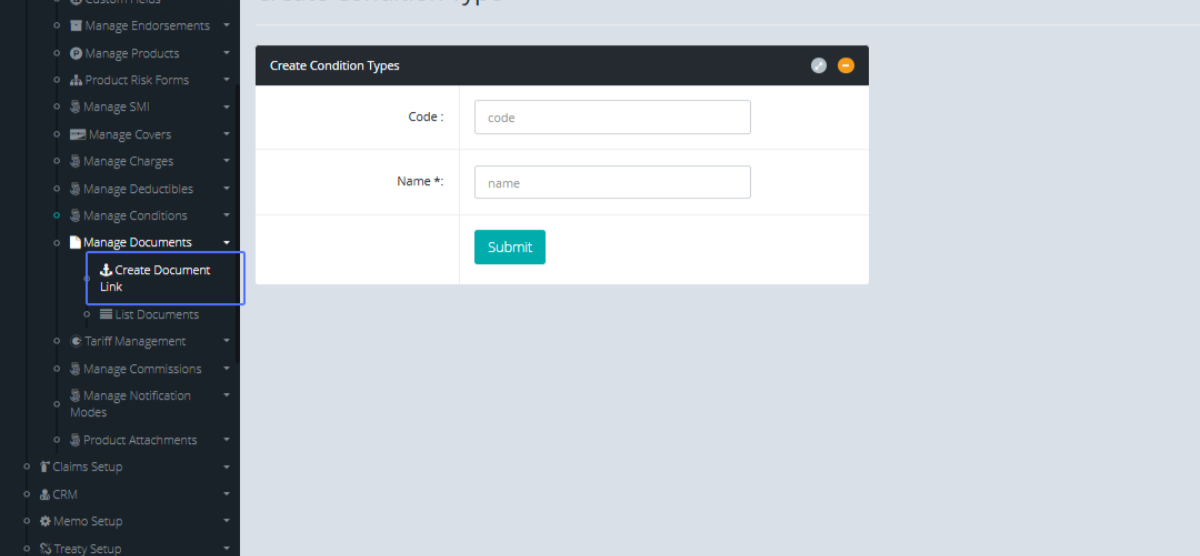
Tab Name: Create Document Link - GENOVA INSURANCE
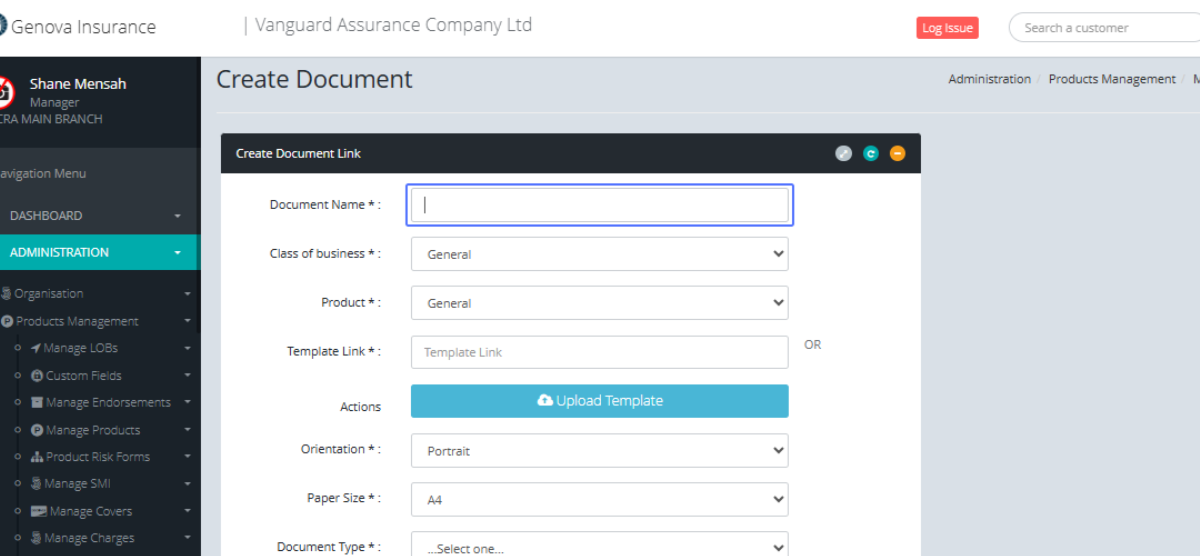
Entering the Document Name: Enter the required Document Name.
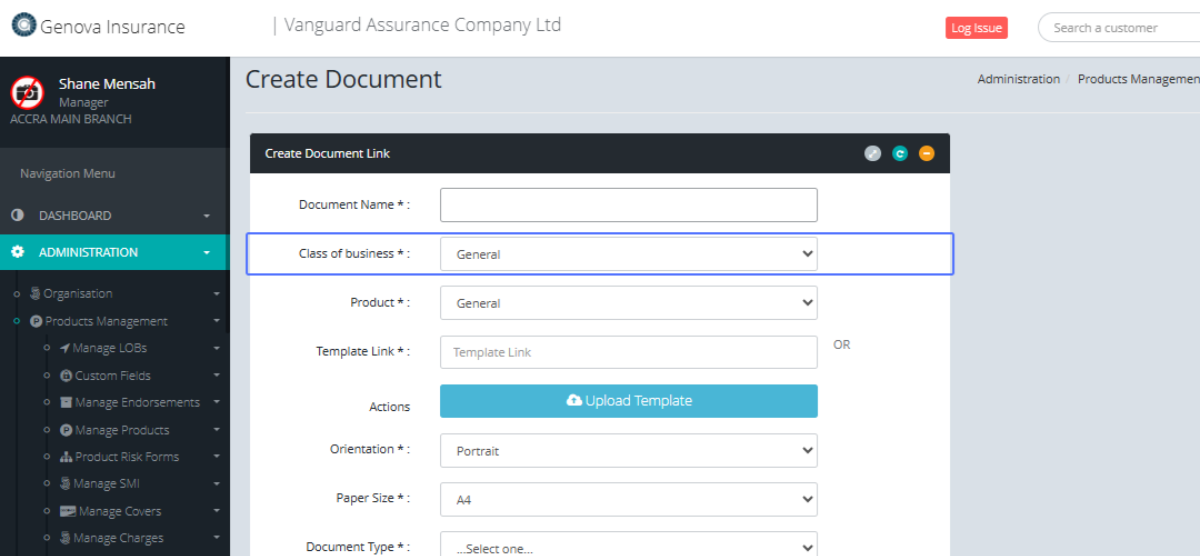
Selecting the Class of Business: Select the Class of Business from the dropdown section
Selecting the Product: Select the Product from the dropdown section
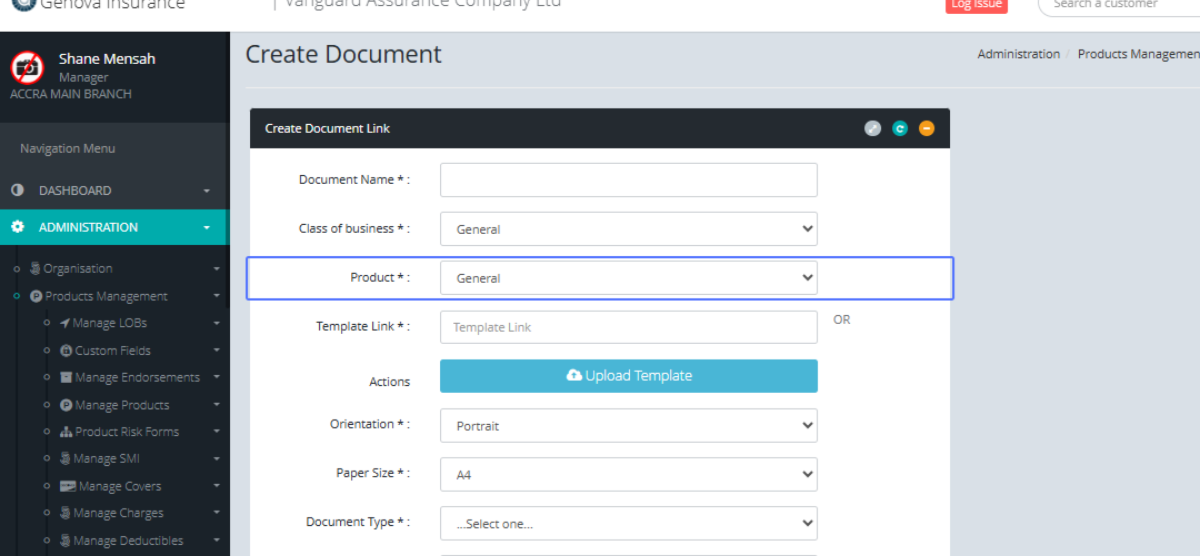
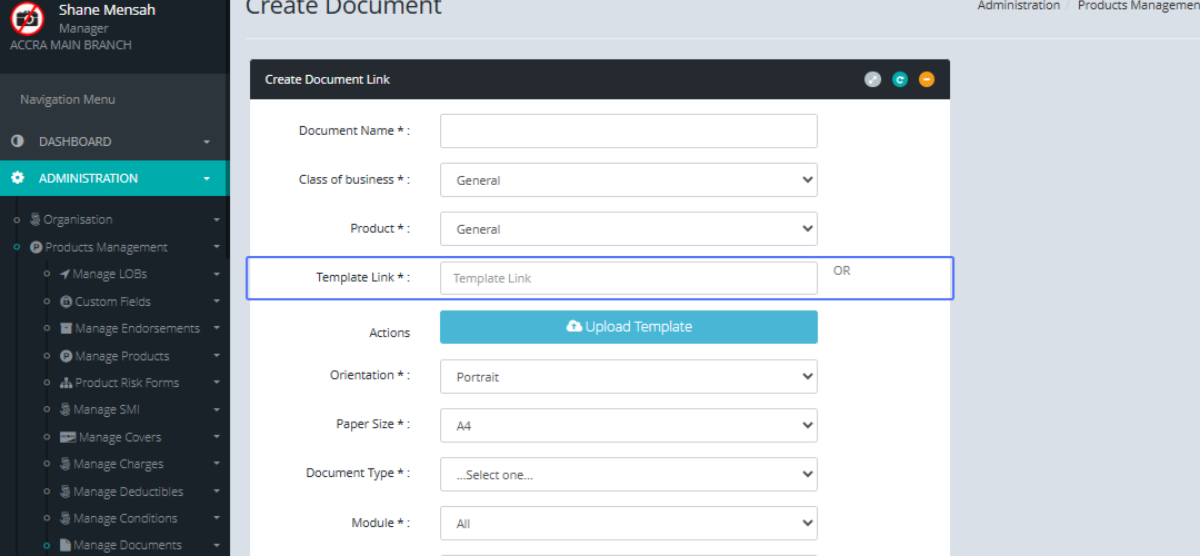
Specifying the Template Link or Uploading a Template: Enter the template Link (Developer Use only)
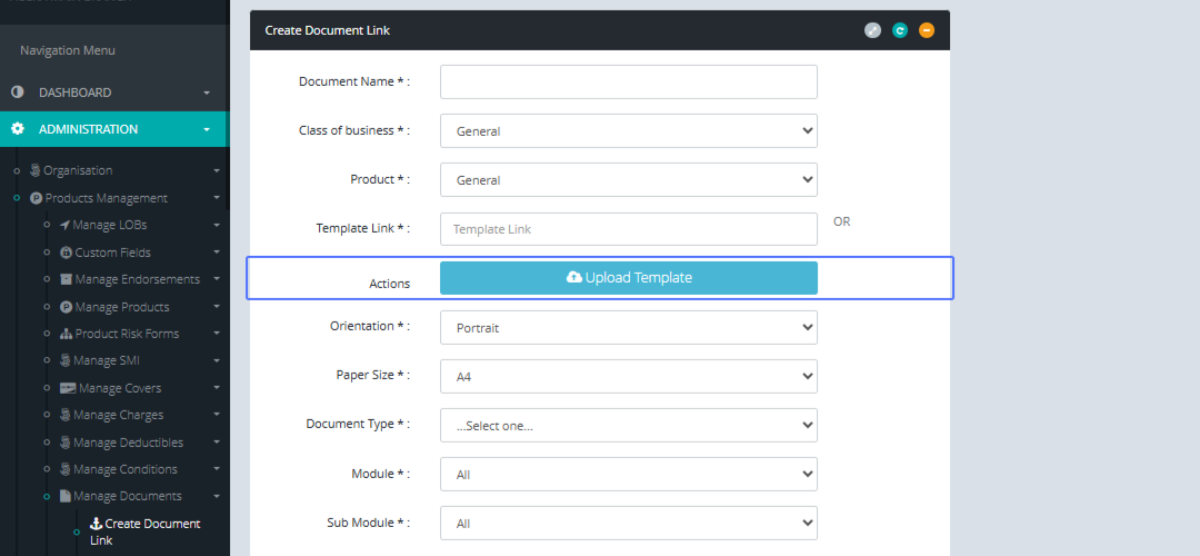
Uploading a Template File: Click the button to Upload the template File
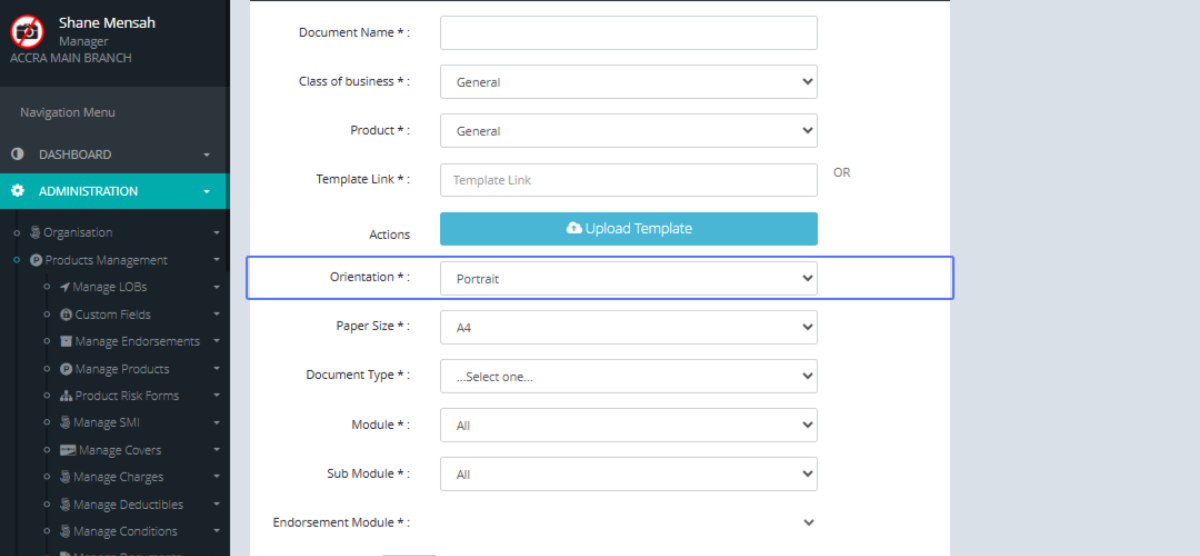
Choosing the Document Orientation: Chose the preferred Document orientation from the dropdown.
Selecting the Paper Size: Select the preferred paper size from the dropdown
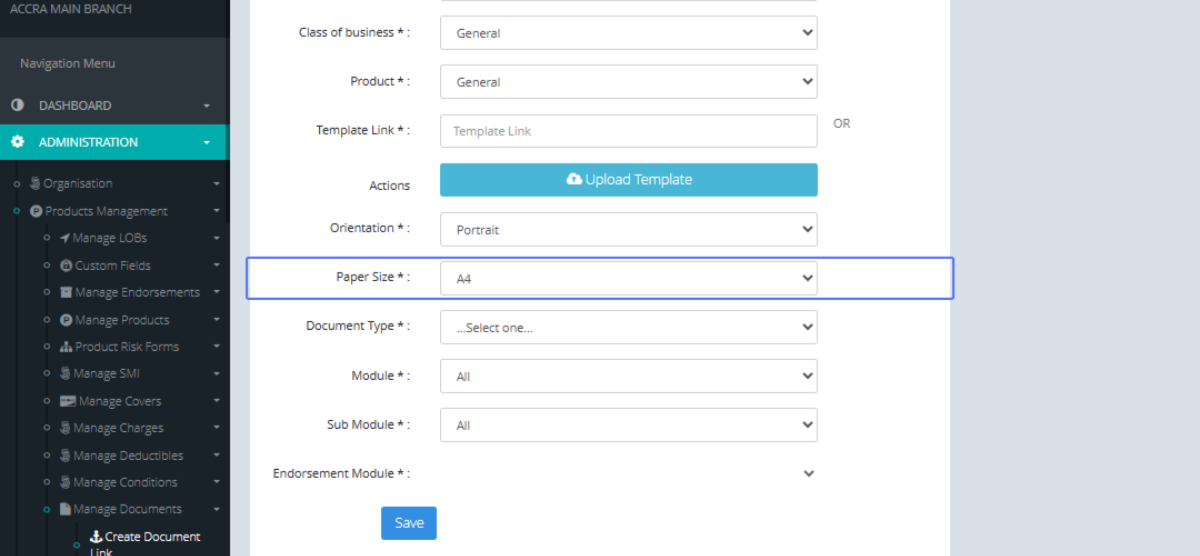
Selecting the Document Type: Select the preferred document type from the dropdown
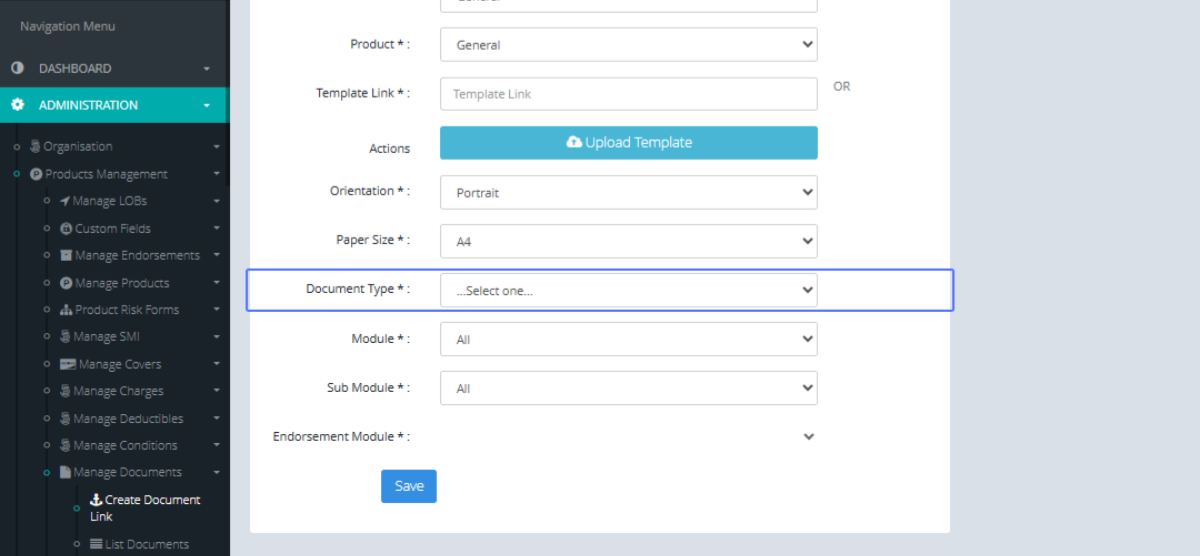
Selecting the Module: Select the preferred Module from the dropdown
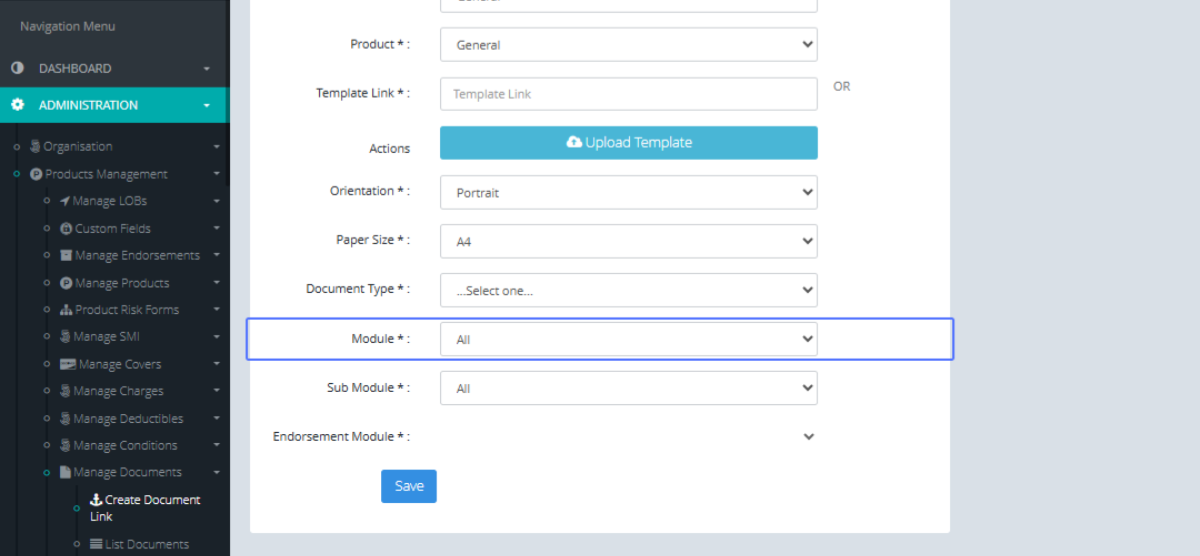
Selecting the Sub Module: Select the preferred Sub Module from the dropdown.
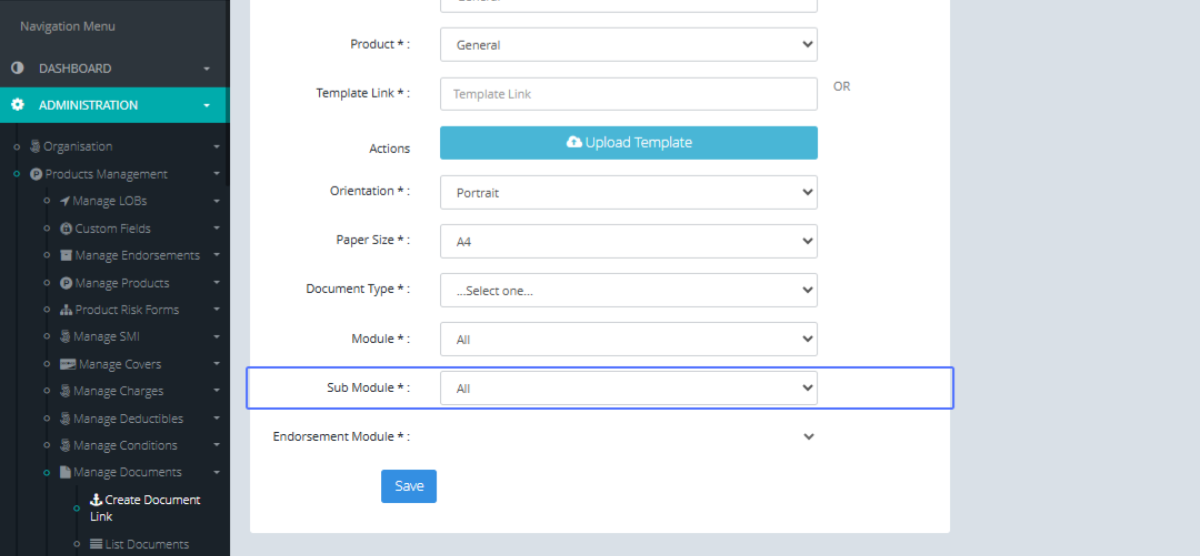
Selecting the Endorsement Module: Select the Endorsement Module (if applicable)
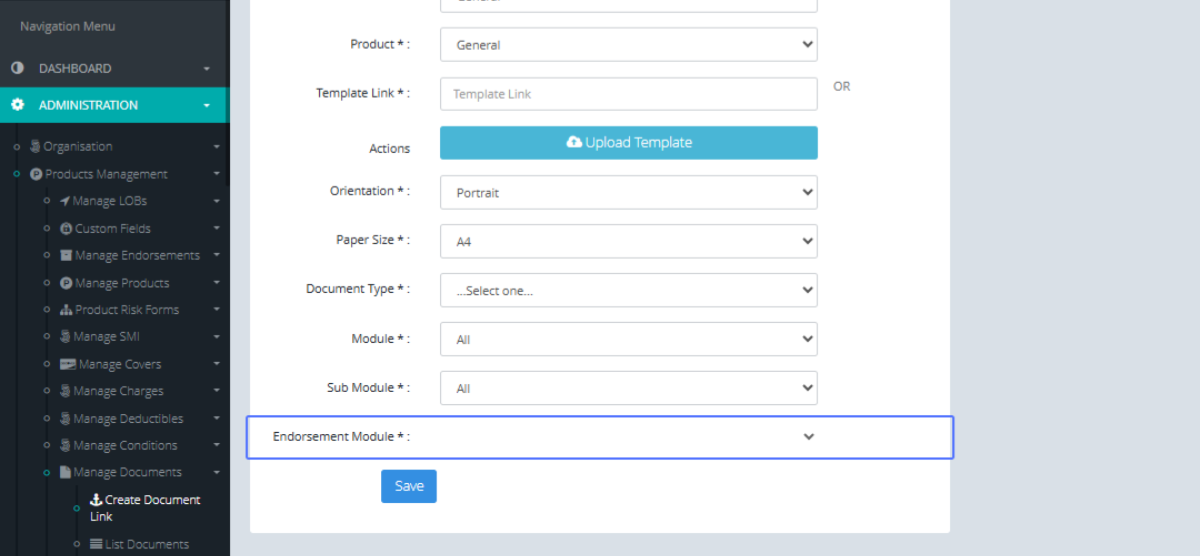
Saving the Document: Click the Save Button to Save the Document.
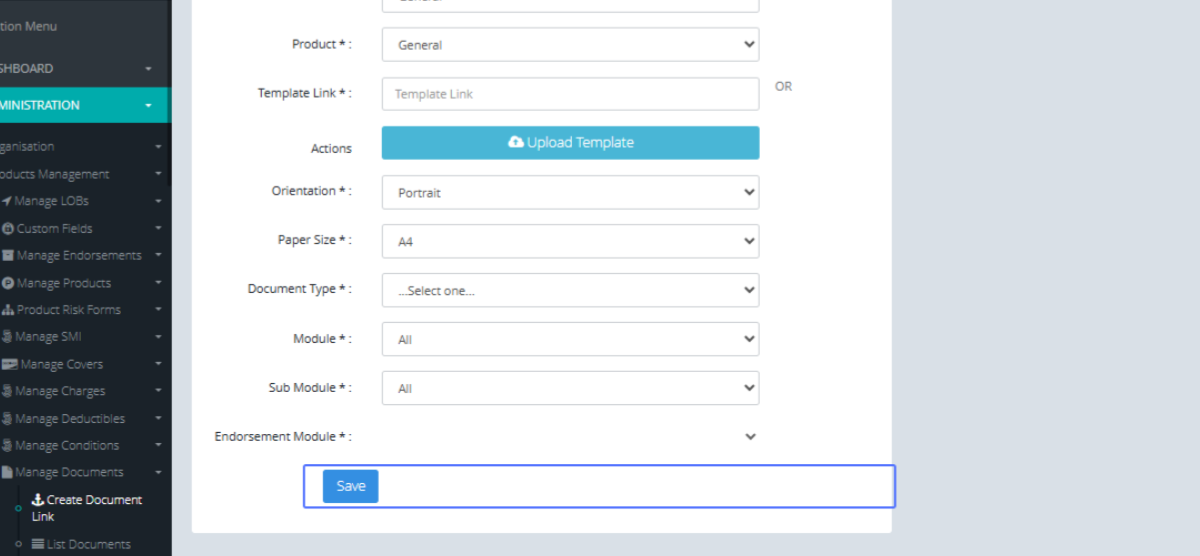
Accessing the Document List: To view the list documents, Click the “List Document” Button.
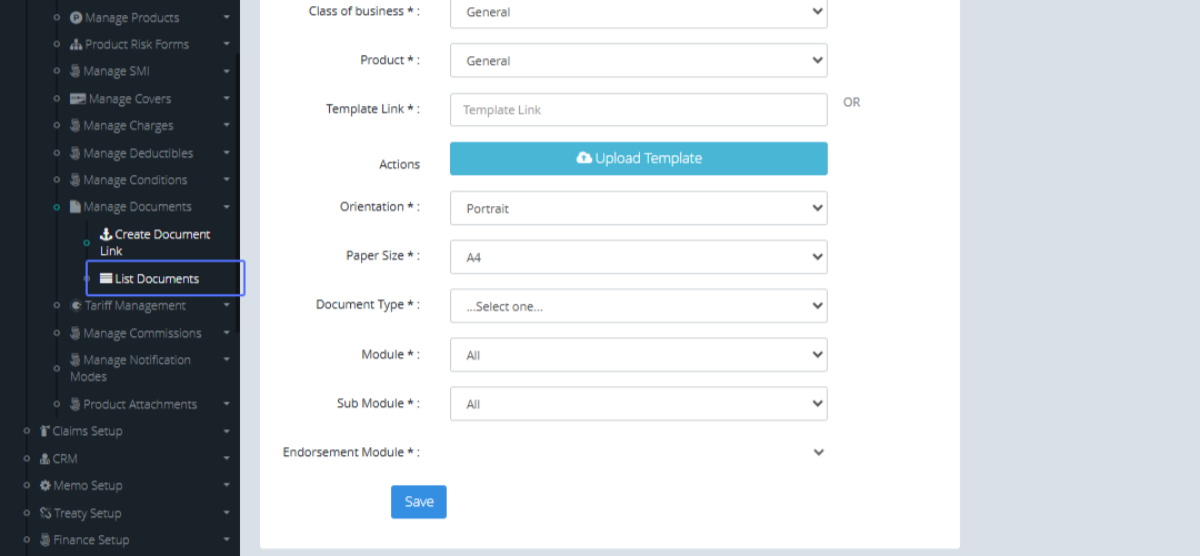
Tab Name: List Documents - GENOVA INSURANCE
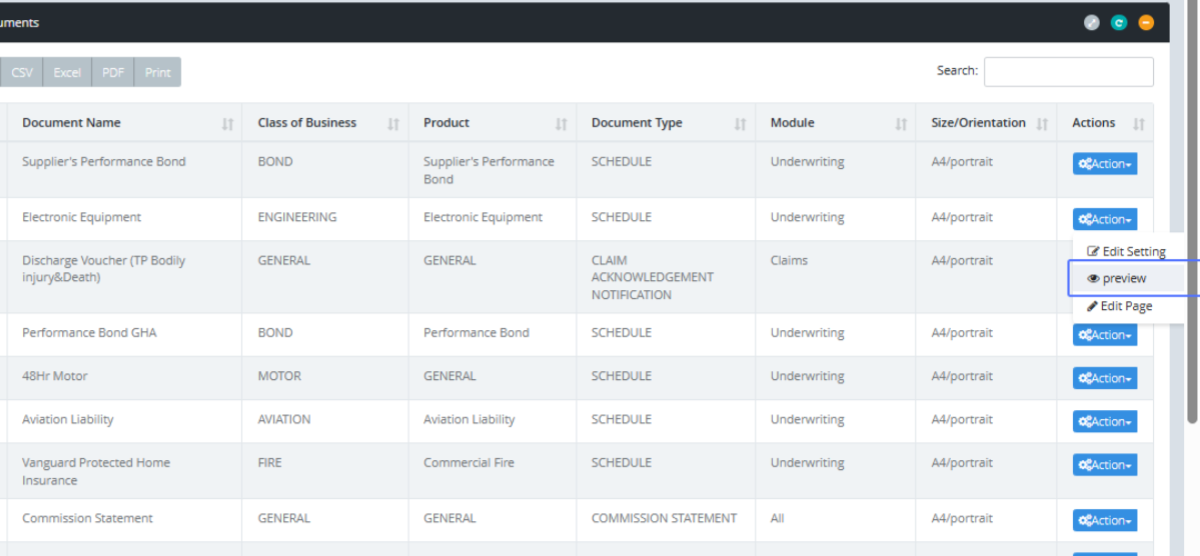
Accessing the Action Menu for Documents: On the List Documents Page, Click the Actions button to see the available actions for the particular document.
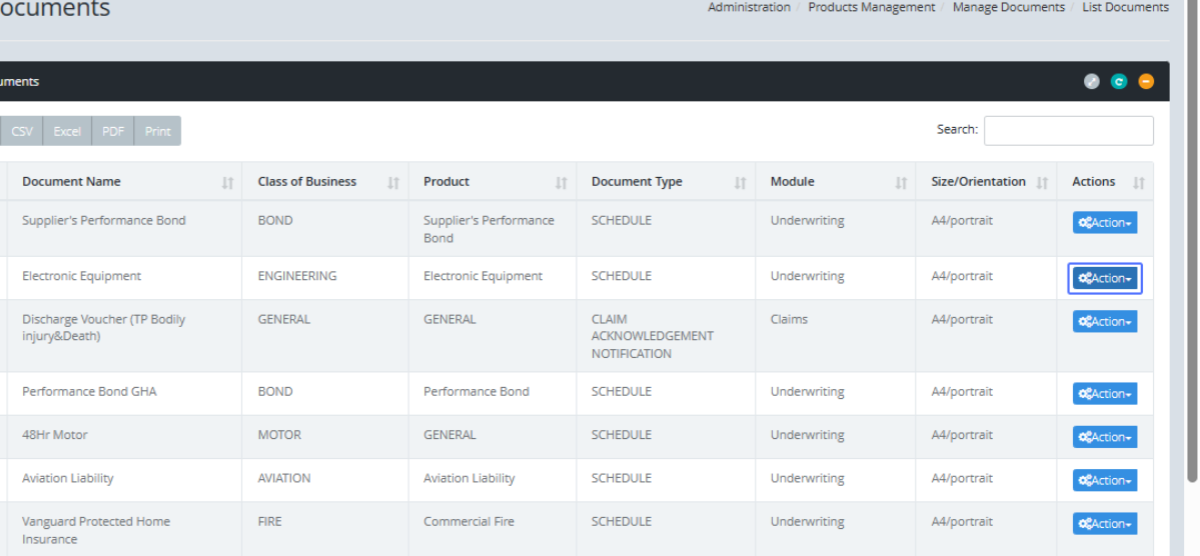
Previewing a Document: Click the Preview button to preview the existing document.
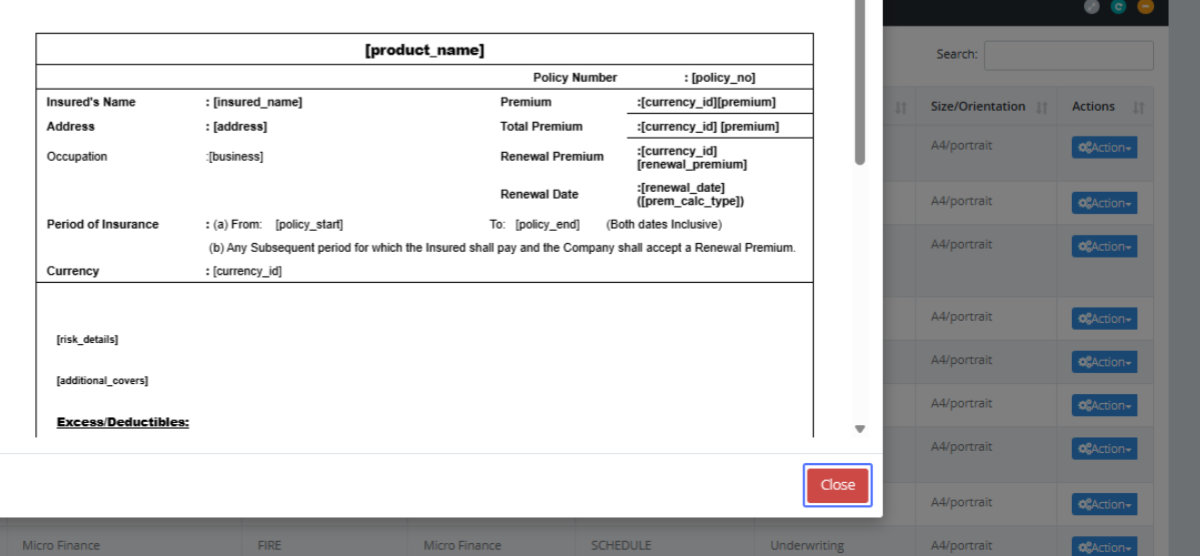
Closing a Document Preview: Close the Modal preview by Clocking the close modal button at the bottom of the modal page.
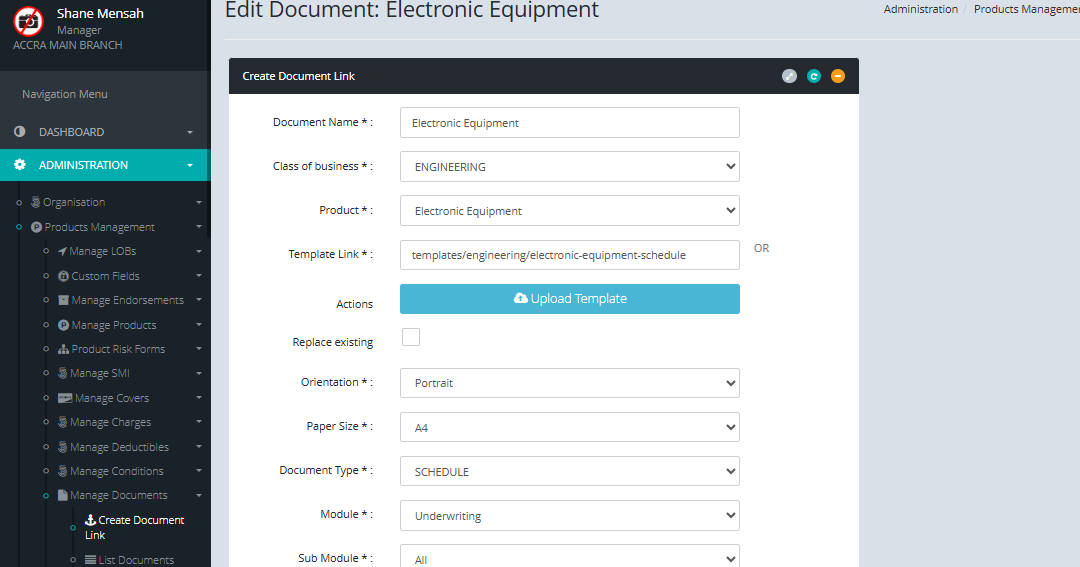
Editing Document Settings: Click the “Edit Setting” Button to Edit the Document Settings.
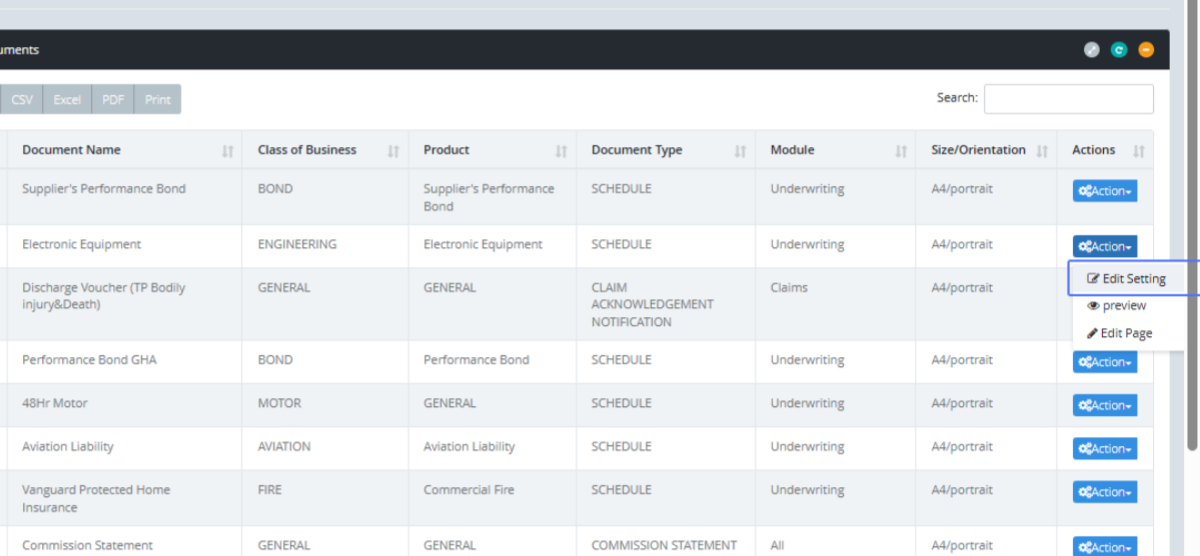
Editing Document Settings: You will then be navigated to the form to edit the existing Document.